Your Toolkit — Part 1: The Terminal & Your Editor
maang.io AI-Native Builder Series
What is this?
Picture the cockpit of an airplane. To a passenger walking past the open door, it looks terrifying — hundreds of switches, dials, and glowing screens, no obvious "go" button. But to the pilot, it's the opposite of scary: it's the one place where every control they need is within reach, nothing is hidden, and they can fly the plane precisely instead of just hoping. The cockpit isn't complicated to punish beginners. It's complicated because flying a plane is a real thing that needs real controls.
The terminal is your cockpit. It's a plain text window where you type commands and the computer does exactly what you say. When you first see it, it looks like a black box from a hacker movie — intimidating, no buttons, just a blinking cursor. But that blinking cursor is the most direct, precise way to control a computer that exists, which is exactly why every professional builder lives in it. Next to it sits your code editor — the workshop where you read and write the actual files your app is made of. Together, the terminal and the editor are the two windows you'll have open every single day of this course.
The one-line idea: the terminal is where you give the computer commands, and the editor is where you read and write your code — the two tools every builder keeps open all day.
Here's the reassuring part: in the AI-Native Mindset topic you learned you're the director, not the typist. You won't be memorizing hundreds of terminal commands. You'll learn just enough to feel at home in the cockpit — and your AI partner will often tell you exactly which command to run. Let's take the fear out of it.
1. Why pros don't just use buttons
You already use a computer with windows, icons, and a trackpad — the GUI (Graphical User Interface, the point-and-click world). It's friendly and visual. So why would professional builders ever choose a black window where you have to type?
Three reasons, and they all come down to one word: precision.
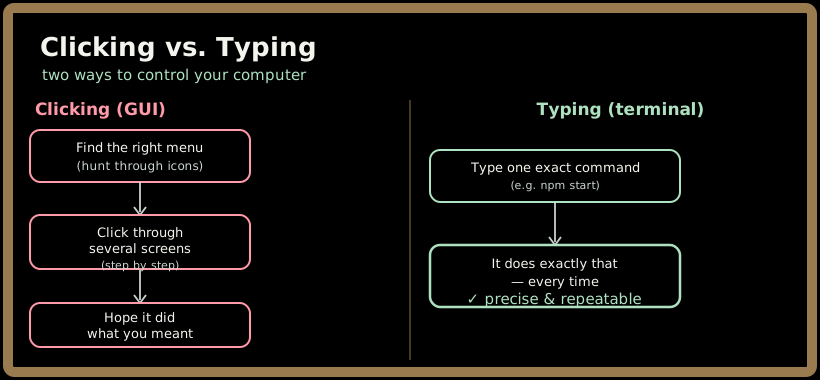
- It's exact. A command means one precise thing. "Click around until it works" can't be written down, repeated, or shared.
npm startcan. - It's repeatable. You can save commands, share them with a teammate, or have the AI run them for you. A series of mouse clicks can't be copied into a message.
- It's where the tools live. The AI coding tools, Git, the thing that runs your app — they're all command-line tools (programs you control by typing). The pros aren't in the terminal to look cool. They're there because that's where the controls are.
💡 You don't have to love the terminal. You just have to be comfortable enough that the blinking cursor feels like a tool, not a threat. That comfort comes from doing, not reading — which is why this chapter ends with you actually opening one.
Quick check before moving on:
2. The file system: where everything lives
Before you can run anything, you need the mental model of where your stuff is. Every file on your computer lives in a tree of folders (also called directories — same thing, different word). A folder can hold files and other folders, which hold more files and folders, all the way down.
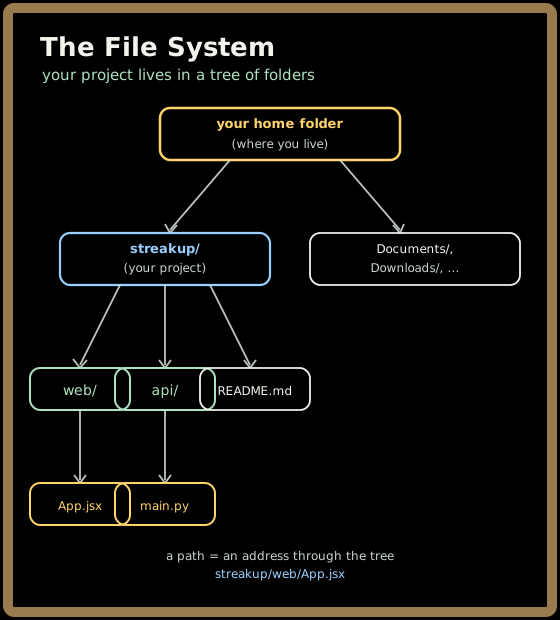
Read that tree top-down: your home folder is your personal base. Inside it you'll make a folder for your project, streakup/. Inside that live the parts of your app — a web/ folder, an api/ folder, individual files like App.jsx. The whole thing is just nested folders, exactly like the Finder or File Explorer you already use — the terminal just lets you move through it by typing instead of clicking.
Two ideas make the whole file system click:
- A path is an address.
streakup/web/App.jsxmeans "insidestreakup, insideweb, the fileApp.jsx." It's a set of directions through the tree, like a street address. - You are always "standing" somewhere. The terminal always has a current directory — the folder you're "in" right now, like your current location on a map. Most commands act on wherever you're standing. A huge share of beginner confusion is just not knowing which folder you're in — so we'll always check.
3. Running your first command
A command is an instruction you type and run by pressing Enter. The terminal reads it, does the thing, and shows you the result. That's the entire loop: type → Enter → see output → type the next one.
Let's read a real one. The command pwd stands for "print working directory" — it answers the question "which folder am I standing in?" Here's what running it looks like, output and all:
$ pwd
/Users/you/streakup
The $ is the prompt — the terminal's way of saying "I'm ready, type something." You don't type the $; it's already there. You typed pwd, pressed Enter, and the terminal answered with your current location. That's a complete command-and-response, and it's the shape of every terminal interaction you'll ever have.
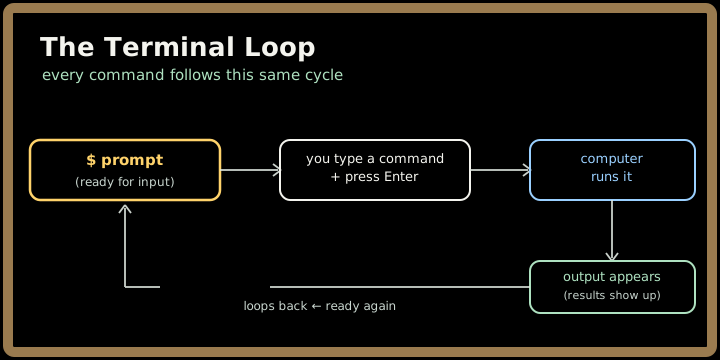
Here are the only handful of commands you need to feel at home. You will not memorize these — you'll absorb them by using them, and your AI partner will remind you when you forget:
| Command | What it does | Plain-English meaning |
|---|---|---|
pwd |
print working directory | "Where am I standing?" |
ls |
list | "What's in this folder?" |
cd web |
change directory | "Walk into the web folder." |
cd .. |
change directory up | "Step back up one folder." |
mkdir streakup |
make directory | "Create a new folder called streakup." |
⚠️ The single most common beginner mistake is running a command in the wrong folder — trying to start your app while standing in your home folder instead of inside streakup/. When something says "file not found" or "no such command," your first move is always the same: run pwd and ls to check where you are and what's around you. It fixes a startling number of problems.
Quick check before moving on:
4. The editor: your workshop
The terminal is where you run things. The code editor is where you read and write the files those things are made of. If the terminal is the cockpit, the editor is the workbench where you actually look at and shape the parts.
The standard editor — the one most professionals and AI tools use — is VS Code (Visual Studio Code), a free editor from Microsoft. (Its AI-powered cousin Cursor is built on the exact same foundation, so everything you learn here carries straight over — we'll meet Cursor and Claude Code in Meeting Your AI Partner.) An editor isn't just a fancy text box. It does three things that make reading code dramatically easier:
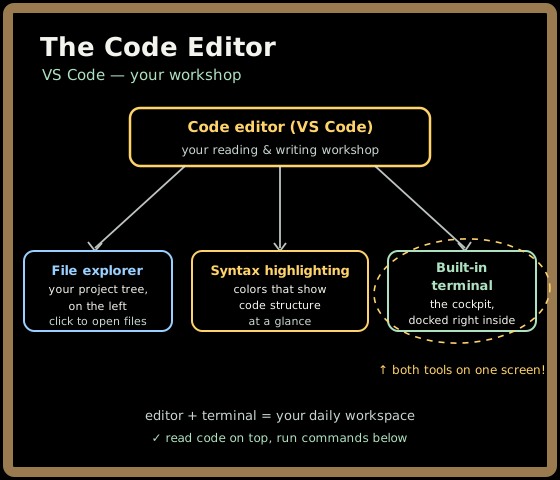
- The file explorer shows your whole project tree (the same folders from Section 2) down the left side, so you can click through your files instead of typing paths to find them.
- Syntax highlighting colors different parts of the code — keywords one color, text another, comments a third — so structure jumps out at your eye. Reading code without it is like reading a page with no paragraphs.
- A built-in terminal. This is the lovely part: VS Code has the terminal docked right inside it. You read your code on top, run your commands below, never switching windows. That's why we treat these two tools as one toolkit — in practice they live in the same screen.
💡 Because you're the director, the skill that matters most in the editor isn't typing fast — it's reading. You'll spend far more time reading the code your AI partner wrote, deciding if it's right, than writing code yourself. The editor is your reading room. Get comfortable looking around it.
5. The two windows you'll live in
Let's lock in the picture of your daily workspace. For the rest of this course, "building" mostly means having these two things open side by side and bouncing between them:
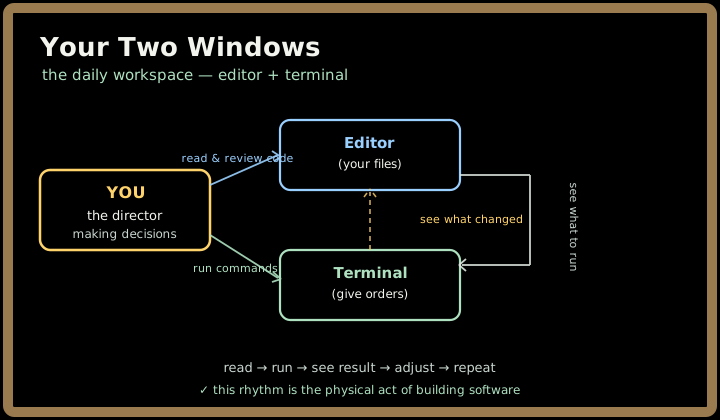
You read and shape files in the editor. You run things — start the app, save your work, talk to the AI — in the terminal. They constantly hand off to each other: you read code in the editor, run it in the terminal, see the result, go back to the editor to adjust. That back-and-forth is the physical rhythm of building software, and it'll feel completely natural within a week.
Everything else in this course — Git, GitHub, your AI partner, FastAPI, React — gets driven from inside these same two windows. Set them up once, and you've built the bench you'll do all your work on.
Key takeaways
- The terminal is a text window where you type commands and the computer does exactly what you say — pros live there because it's precise, repeatable, and where the tools are, not to look cool.
- Your files live in a tree of folders; a path like
streakup/web/App.jsxis an address, and you're always "standing" in one current directory. When something breaks, check where you are first (pwd,ls). - You only need a handful of commands to feel at home (
pwd,ls,cd,mkdir) — and your AI partner will remind you of the rest. You won't memorize; you'll absorb. - The code editor (VS Code / Cursor) is your reading-and-writing workshop: file explorer, syntax highlighting, and a built-in terminal — so both tools live on one screen.
- As the director, your top editor skill is reading code to judge if it's right — not typing it fast.
Test yourself on this part's key ideas:
Your turn
Time to open the cockpit for real. This is the first hands-on setup toward building StreakUp:
- Install VS Code (free, from code.visualstudio.com). Open it once so you've seen the file explorer on the left.
- Open the built-in terminal inside VS Code (look in the menu under Terminal → New Terminal). You'll see the
$prompt waiting. - Run your first three commands, in order:
pwd(where am I?), thenmkdir streakup(make your project folder), thencd streakupandpwdagain (confirm you walked into it). - Build-journal entry: write one sentence on how the terminal felt — honestly. "Less scary than I expected" or "still weird" are both fine. Naming it now means you'll notice it become normal later.
You now have a workspace and a project folder. In Part 2 — Git & GitHub, Gently, we'll add the single most important habit a builder has: saving your work so well that you can travel back in time.